
Adding modern connectivity to an older vehicle does not require buying a brand-new car. If your vehicle lacks built-in smart integration, you can easily install a system that brings navigation, hands-free calling, and music streaming directly to your dashboard. By choosing the right hardware upgrade, you can enjoy a safer, more convenient driving experience on busy highways and daily commutes alike. Many of these modern upgrade systems support both Android Auto and Apple CarPlay, often referred to collectively as android carplay systems, giving you maximum flexibility regardless of which smartphone you or your family members use.
Assess Your Car's Current Infotainment System
Before purchasing any new hardware, evaluate your vehicle’s existing dashboard configuration. Start by inspecting the factory radio to determine its physical dimensions. Older vehicles typically feature either a single-DIN slot (two inches tall) or a double-DIN slot (four inches tall). Some modern cars have highly integrated, non-standard dashboards where the radio is molded directly into the console, which limits your ability to swap out the factory unit without a specialized, custom-molded dash kit.
Next, examine the existing USB ports in your cabin. Many older factory ports are designed solely for low-amperage charging or reading basic MP3 files from a flash drive. To test this, plug in a flash drive with media files or connect your phone to see if the system attempts to read data or merely charges the battery slowly. If the port cannot transfer data at high speeds, you must rely on the USB ports provided by your new aftermarket hardware.
Products mentioned in this guide
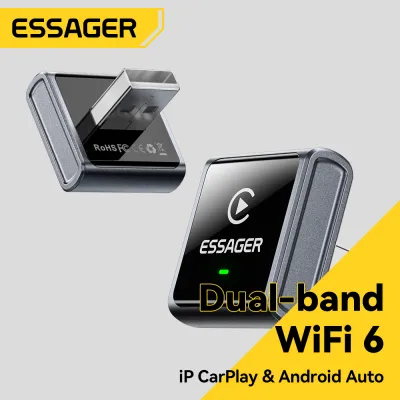
78 Lazada user ratings
same sa photo. kasya naman sa kotse na may android auto or apple carplay. gumagana parehas. maganda ang built quality. kaya 4 stars kasi hin…Read full reviewShow less
same sa photo. kasya naman sa kotse na may android auto or apple carplay. gumagana parehas. maganda ang built quality. kaya 4 stars kasi hindi kaagad kumo connect. paminsan kailangan mong hugutin ulit ang usb.
Compatible sa 12th gen altis. Plug and play kaya sobrang dali na ng carplay
Wireless CarPlay support, WiFi6 support, Fast pairing,
Easy installation, Fast pairing,
Fast pairing,
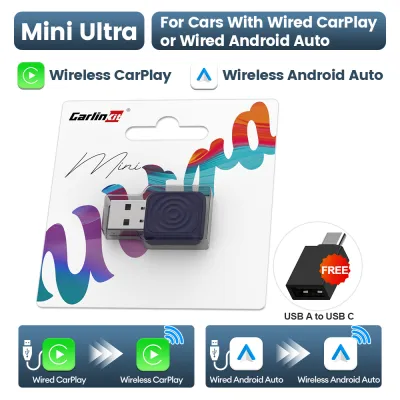
1,220 Lazada user ratings
High quality material, Plug and play ready, Good signal strength, Perfect for car use, Supports CarPlay,
Easy installation, Plug and play ready, 🔌Compatibility:9\10 📡Range:8\10 ⚡Speed:8\10 👌Ease of Use:10
Functional and great for my Toyota Raize. Plug and play ready, Fast connection, and good quality.
Stable performance,
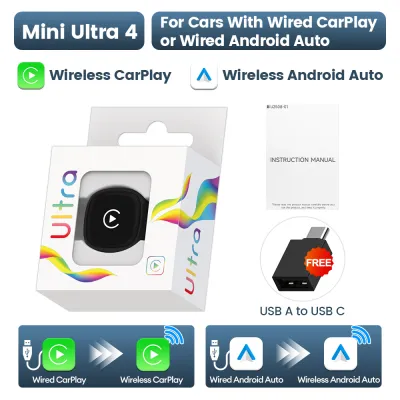
9 Lazada user ratings
Its working. Its auto reconnect and no need to for cables. Good quality and initial connectionnis plug and play compared to xuda which I bou…Read full reviewShow less
Its working. Its auto reconnect and no need to for cables. Good quality and initial connectionnis plug and play compared to xuda which I bought a few weeks ago.
Works great if your car has Apple CarPlay or Android Auto. When you play or stop music, there's a 1-second lag, but that's totally fine.
👌Ease of Use:ok ⚡Speed:good 🔌Compatibility:ok
nawawala wala un connection pangit quality
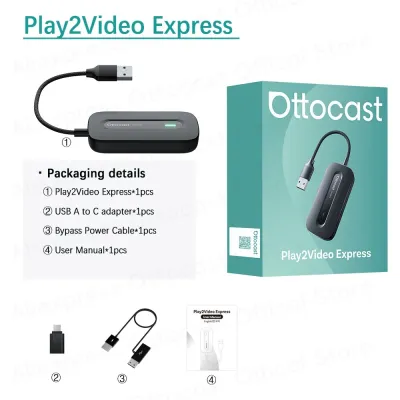
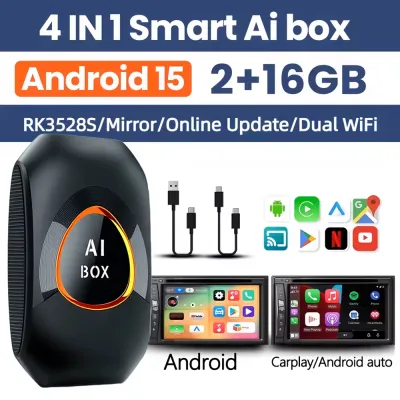
Prices are valid at publication and may change. Please refer to the product page for the latest price.
Finally, check for auxiliary (AUX) inputs or factory Bluetooth audio. If you plan to use a portable smart display rather than a fully integrated dashboard replacement, you need a reliable way to route the audio from the display to your car’s speakers. An AUX port offers the most stable, lag-free audio connection. If your car lacks an AUX port but has basic factory Bluetooth, you can often route the audio wirelessly. For older cars without either option, you may have to rely on an FM transmitter built into the portable display, though this method is highly susceptible to static and interference in crowded urban areas.
Choose the Right Android Auto Upgrade Path
Once you understand your car’s physical limitations, you can select the upgrade path that best fits your vehicle and installation comfort level. The most seamless and permanent solution is an aftermarket head unit. These devices replace your factory radio entirely, fitting directly into the single-DIN or double-DIN slot on your dashboard. Aftermarket head units offer a clean, factory-installed appearance, superior audio processing, and direct integration with your vehicle’s existing speakers and steering wheel controls. However, they require more intensive installation work and may require purchasing vehicle-specific mounting brackets and wiring harnesses.

For drivers who prefer a non-invasive setup, portable smart displays offer an excellent alternative. These standalone screens mount directly to your dashboard or windshield using suction cups or adhesive pads, plugging directly into your car’s 12V accessory outlet for power. Portable displays are highly versatile because they do not require you to disassemble your dashboard, making them ideal for leased vehicles, older models with complex integrated stereos, or drivers who want to easily transfer the system between different cars.
It is crucial to distinguish these complete display upgrades from simple wireless adapters and basic Bluetooth transmitters. Standard wireless dongles are designed solely to convert an existing wired factory Android Auto system into a wireless one; they cannot add the interface to a car that lacks a compatible screen. Similarly, basic Bluetooth or FM transmitters only stream audio from your phone to your car speakers; they do not provide the visual map interface, touchscreen controls, or app integration that define a true smart dashboard experience.
When shopping for your upgrade, look for units that support dual-system compatibility. Choosing a device that handles both Android Auto and Apple CarPlay ensures that anyone driving the vehicle can connect their phone seamlessly. This shared compatibility is highly practical for households with multiple drivers using different mobile operating systems, preserving the vehicle’s utility.
Step-by-Step Installation and Setup Guide
Upgrading your car’s technology involves two distinct phases: the physical installation of the hardware and the digital configuration of the software. Taking your time during both phases ensures a clean setup that operates reliably without distracting you while driving. Before beginning, always read the specific manufacturer’s manual for your chosen device to understand its unique wiring diagrams, mounting requirements, and power specifications.
Mounting the New Display or Head Unit
If you are installing an aftermarket head unit, always use a vehicle-specific dash kit and a matching wiring harness adapter. This allows you to plug the new unit directly into your car’s factory wiring plugs without cutting or splicing original wires, preventing electrical shorts and preserving the factory wiring.
For portable smart displays, select a mounting location that does not obstruct your view of the road or block critical dashboard controls. In tropical climates with high humidity and intense sunlight, suction cups can lose suction over time, and cheap adhesives may melt. To prevent the display from falling, clean the mounting surface thoroughly with isopropyl alcohol before applying the mount, or consider using a sturdy vent mount.
Route all power and data cables safely to prevent them from interfering with your driving. Loose cables hanging down the center console can easily get caught on the gear shifter, handbrake, or pedals. Use adhesive cable clips to tuck the wires neatly along the seams of the dashboard panels, routing them down to the 12V accessory outlet.
Always respect the safety boundaries of automotive electrical work. If your installation requires disassembling the dashboard near passenger airbags, routing wires through the steering column, or integrating steering wheel controls and backup cameras, consult your vehicle’s original service manual. If you encounter conflicting wiring diagrams, stop the installation immediately and seek assistance from a qualified automotive electrician.
Pairing Your Phone and Configuring the Software
With the hardware securely mounted, you can begin the digital setup process. Before connecting your phone to the new display, update your phone’s operating system and the Android Auto app to their latest available versions. Running outdated software is one of the most common causes of connection failures, lag, and app crashes during the initial pairing process.
For the very first connection, always use a high-quality, certified USB data cable, even if your new head unit or portable display supports wireless connection. A physical cable ensures a stable, uninterrupted data transfer while the phone and the display exchange security certificates and establish their initial handshake. Avoid using cheap, uncertified charging cables, as they often lack the shielding and data wires required to sustain a continuous high-bandwidth connection.
Once you plug the phone into the unit’s designated USB data port, unlock your phone screen and follow the on-screen prompts. You will need to grant several permissions on your phone, allowing the system to access your contacts, location, notifications, calendar, and media libraries. Simultaneously, look at the car’s new display and accept the safety terms and conditions, which typically remind you to keep your eyes on the road and use voice commands whenever possible. Once these permissions are granted, the familiar interface will launch on the screen, and you can configure wireless pairing if your hardware supports it.
Verify the Connection and Troubleshoot Common Issues
Before driving, conduct a thorough system check to ensure everything functions correctly and safely. Start by testing the audio routing. Play a music track and then launch a navigation app to input a destination. Verify that the navigation voice prompts play clearly through your car’s speakers and that the system smoothly lowers the music volume during prompts rather than completely cutting the audio.
Next, test the microphone clarity to ensure hands-free calls and voice commands work flawlessly. Start your car’s engine and turn on the air conditioning to simulate real-world driving conditions. In hot climates, the sound of the AC blower running on high can create significant cabin noise. Make a test call to verify that the microphone can clearly distinguish your voice over the background noise of the engine and climate control.
If you experience connection dropouts or if the display shows a “device not recognized” error, perform a systematic check of your physical connections. Inspect your USB cable for physical wear, kinks, or loose connectors. Over time, pocket lint and dust can accumulate inside your phone’s charging port, preventing the cable from seating fully; gently clean the port using a wooden toothpick. Finally, check the manufacturer’s website for your head unit or portable display to see if a firmware update is available.
Frequently Asked Questions (FAQ)
Can I use a wireless Android Auto adapter if my car has no built-in screen?
No, a wireless adapter cannot add smart functionality to a car that lacks a compatible screen. These adapters are designed solely to convert an existing, factory-installed wired system into a wireless one. If your car only has a basic radio or no screen at all, you must install either an aftermarket head unit or a portable smart display to get the visual interface.
Do I need a special USB cable for Android Auto to work?
Yes, you must use a high-quality, data-capable USB cable. Many cheap cables are designed only for charging and do not have the internal wiring required to transfer high-bandwidth data. For the most reliable connection, use the original cable that came with your phone or a certified high-speed data cable from a reputable manufacturer, and keep it dedicated to your car.
Will adding an aftermarket screen drain my car battery?
An aftermarket screen will not drain your battery if it is wired correctly. When installing a head unit, ensure it is connected to a switched power source (often labeled ACC or accessory power) that turns off completely when you turn off the ignition. If you use a portable display plugged into a 12V accessory outlet, verify whether your car cuts power to that outlet when the key is removed; if the outlet remains powered, you should manually unplug the display when parking the car for extended periods to prevent parasitic battery drain.
Community discussion
Share your experience or ask a question. Comments are reviewed before publication.