
Upgrading your vehicle’s infotainment system with the OttoCast P3 Pro allows you to transition from a cluttered, wired setup to a seamless wireless connection. To use this device, your car must have a factory-installed wired Apple CarPlay system. Setting up the adapter requires plugging it into your vehicle’s primary USB data port and pairing your smartphone via Bluetooth and Wi-Fi.
For drivers navigating the daily gridlock of Metro Manila or embarking on long drives along the North Luzon Expressway (NLEX), a reliable wireless connection eliminates the constant hassle of plugging in cables. The high humidity and tropical heat of the Philippines can accelerate wear on physical charging ports and cables, making a wireless adapter a practical upgrade to preserve your smartphone’s hardware. By understanding the compatibility requirements and following a systematic setup process, you can ensure a stable connection that keeps your navigation and media running smoothly.
How to Check if Your Car Supports the OttoCast P3 Pro
Confirming that your vehicle is compatible with the OttoCast P3 Pro before purchase is essential to avoid hardware conflicts. The absolute primary requirement for this adapter to function is a factory-installed, wired Apple CarPlay system. The OttoCast P3 Pro does not add CarPlay to a vehicle that lacks the underlying software; instead, it acts as a bridge, utilizing the existing wired CarPlay protocol to establish a wireless communication channel with your smartphone.
Products mentioned in this guide
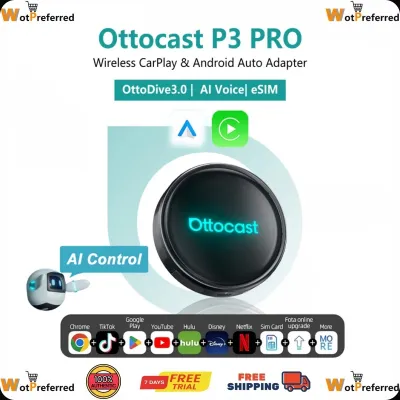
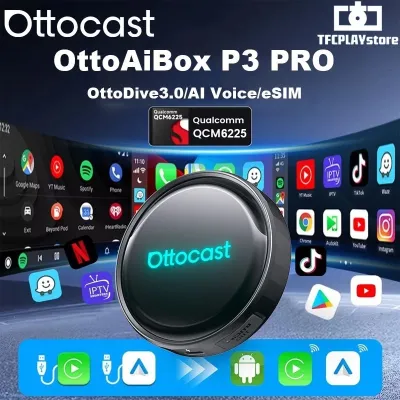

Prices are valid at publication and may change. Please refer to the product page for the latest price.
To verify if your vehicle features native wired Apple CarPlay, start your car and examine the infotainment screen. Look for the distinctive Apple CarPlay icon on the home menu, which typically highlights or becomes active when a compatible device is connected. Alternatively, inspect the physical USB ports on your center console or dashboard. The correct port for data transfer is often labeled with a smartphone icon, a smart link symbol, or a small USB data emblem, distinguishing it from standard, charge-only ports.
Several common configurations will not support the OttoCast P3 Pro. If your vehicle only features basic Bluetooth audio streaming without any smartphone integration interface, the adapter cannot function. Older infotainment systems, aftermarket head units lacking CarPlay certification, or specific proprietary systems that block third-party dongles are also incompatible. Additionally, some vehicle manufacturers use closed software ecosystems that actively restrict external hardware interfaces, preventing the adapter from establishing the necessary handshake.
Because vehicle specifications vary significantly by model year, trim level, and regional market, you must consult the official OttoCast compatibility list on the manufacturer’s website before making a final decision. In the Philippines, popular models like the Toyota Fortuner, Mitsubishi Montero Sport, or Honda Civic may have different infotainment configurations depending on whether they are entry-level or premium trims. Some specific car head units require particular firmware versions or system updates from the local dealership to support third-party adapters reliably. Always cross-reference your exact vehicle model, production year, and head unit version with the manufacturer’s documentation to ensure compatibility.
What to Prepare Before Installing the P3 Pro
A successful installation relies on proper preparation of your hardware, smartphone, and vehicle environment. Using the correct physical connection is paramount. You must use the high-quality USB cable included in the box or an equivalent certified high-speed data-transfer cable. Many standard cables are designed solely for charging and lack the necessary internal shielding and wiring required to transmit high-bandwidth CarPlay data signals, which will lead to immediate connection failures.

Your smartphone must also be fully prepared for the wireless handshake. Ensure your phone’s operating system—whether iOS or Android—is updated to the latest stable release to prevent software compatibility bugs. Before beginning the pairing sequence, verify that both Wi-Fi and Bluetooth are toggled on in your phone’s settings. The adapter utilizes Bluetooth to establish the initial handshake and Wi-Fi to handle the heavy data transfer required for wireless projection, so keeping both active is non-negotiable.
Finally, ensure your vehicle is in a safe, stable state before initiating the setup. The car engine should be running or the ignition set to accessory mode in a well-ventilated area. This guarantees a stable, uninterrupted power supply to the USB data port. A drop in voltage during the initial boot sequence or firmware handshake can interrupt the pairing process, potentially causing the adapter’s internal software to hang or require a hard reset.
Step-by-Step Setup Guide for the OttoCast P3 Pro
Connecting the Device to Your Car
To begin the physical installation, locate the designated USB data port in your vehicle’s cabin. This port is typically situated at the base of the center console, inside the armrest compartment, or directly below the infotainment screen. It is crucial to select the port specifically wired for smartphone integration—often marked with a white outline, a smartphone icon, or the word “Data”—rather than a port designated purely for rear-passenger charging or high-amperage power delivery.
Plug the OttoCast P3 Pro into this port using the provided cable. Once connected, observe the device’s physical chassis for the indicator light, which should illuminate or begin flashing to signal that it is receiving power. On your vehicle’s infotainment screen, look for a prompt indicating that a new USB device or CarPlay source has been recognized. This initial boot sequence may take several seconds as the car’s head unit identifies the adapter’s interface.
If your car’s infotainment system does not automatically launch the CarPlay interface upon plug-in, navigate to the main menu manually. Select the Apple CarPlay, Smart Link, or smartphone projection option from the screen. This action forces the head unit to open the communication channel, allowing the OttoCast user interface to display on your dashboard screen, which is the starting point for the wireless pairing process.
Pairing Your Smartphone
With the OttoCast interface visible on your car’s screen, take out your smartphone to initiate the wireless pairing. Open your phone’s settings menu and navigate to the Bluetooth section. Ensure Bluetooth is active, and wait for the phone to scan for nearby broadcasting devices. You should see a unique Bluetooth broadcast name corresponding to the OttoCast P3 Pro, which is usually displayed on the car’s infotainment screen as a guide.
Tap the device name on your phone to initiate the pairing sequence. Your phone may display a pairing request pop-up, sometimes accompanied by a numeric PIN. Confirm that the PIN matches any number shown on your car’s screen, and accept the pairing request. It is vital to grant all requested permissions during this phase, such as allowing contact synchronization or enabling CarPlay/Android Auto access, to ensure full functionality.
After the Bluetooth connection is established, your phone will receive a system prompt asking if you want to use CarPlay or Android Auto wirelessly with this device. Select the option to allow wireless projection. This step authorizes your phone to automatically establish a secure local Wi-Fi connection with the adapter in the background, which is necessary for streaming the interface without physical cables.
Finalizing the Wireless Connection
Once the pairing permissions are confirmed, the system will finalize the connection. You should expect a brief wait time of approximately 10 to 30 seconds for the initial wireless CarPlay or Android Auto interface to load and display on your car’s screen. During this period, the adapter and your phone are negotiating the wireless channel and establishing the high-bandwidth Wi-Fi link.
To ensure a seamless experience on future drives, configure the settings on both your phone and the adapter to allow auto-connection. Most modern infotainment systems and the OttoCast interface itself will default to reconnecting to the last paired device. Verify that your phone’s settings allow the wireless projection service to run automatically without requiring manual authorization every time you enter the vehicle.
For daily operation, you must keep both Wi-Fi and Bluetooth enabled on your smartphone whenever you are driving. If you turn off Wi-Fi to save battery or connect to an external hotspot, the wireless projection link will immediately drop. The adapter relies on a continuous, dedicated local Wi-Fi connection to stream high-definition maps and audio to your dashboard without lag.
How to Verify the Connection and Fix Common Issues
After completing the setup, perform a quick verification check to ensure all features are operating correctly. Play a song or podcast to test audio routing through your car’s speaker system, and adjust the volume using both the screen and physical steering wheel controls. Next, open your preferred navigation app, trigger a voice assistant command (such as Siri or Google Assistant), and confirm that the vehicle’s integrated microphone captures your voice clearly. Finally, test the physical steering wheel buttons for skipping tracks to verify that the adapter is communicating properly with your car’s controller area network (CAN bus).
If your vehicle displays a “Device Not Recognized” error, or if the screen remains blank after plug-in, start by checking the physical connection. Ensure the USB cable is fully seated in both the adapter and the car’s port. Verify that you are using the correct data port and not a charging-only outlet. If the issue persists, replace the cable with another high-quality, shielded USB data cable, as physical cable degradation is a frequent cause of connection failures.
For issues regarding frequent disconnects, audio stuttering, or screen lag, investigate potential wireless interference. In high-density urban areas like the business districts of Makati or Ortigas, local wireless signals can occasionally interfere with the 5 GHz Wi-Fi band used by the adapter. Ensure that no other smartphones with active Bluetooth or Wi-Fi are attempting to connect to the adapter simultaneously in the cabin. If multiple devices are paired, disable Bluetooth on the secondary passenger phones to prevent connection conflicts.
If you encounter persistent issues where the car’s infotainment system repeatedly rejects the adapter, displays system error codes, or freezes during the boot sequence, you must stop troubleshooting to prevent potential software corruption. Do not attempt to force firmware modifications or use unauthorized third-party software tools. Instead, consult your vehicle manufacturer’s documentation or contact OttoCast support directly. In some instances, your car’s head unit may require an official dealer-installed firmware update to resolve underlying compatibility bugs with external USB devices.
Frequently Asked Questions (FAQ)
Does the OttoCast P3 Pro work with Android Auto?
The OttoCast P3 Pro is designed with multi-platform capabilities, allowing it to convert wired connections into wireless interfaces for both Apple CarPlay and Android Auto. However, the stability and performance of the wireless Android Auto conversion depend heavily on the specific firmware version installed on the adapter and the native capabilities of your car’s head unit. Because some vehicle infotainment systems handle Android Auto protocols differently than Apple CarPlay, it is highly recommended that Android users verify their specific vehicle make, model, and year on the manufacturer’s official compatibility database before purchasing the device to ensure a reliable experience.
Will the device drain my car battery when parked?
Under standard operating conditions, the OttoCast P3 Pro is engineered to enter a low-power sleep mode or shut down entirely when the car’s ignition is turned off, drawing no significant power from the vehicle’s battery. However, power management behavior depends on how your specific vehicle handles its USB ports. In some modern cars, the USB data ports remain energized continuously even after the engine is shut off and the doors are locked. If your vehicle’s USB ports do not power down automatically, you should unplug the adapter during extended periods of parking or storage to prevent gradual battery drain.
Community discussion
Share your experience or ask a question. Comments are reviewed before publication.