
Setting up your ThinkDiag scanner for the first time is a straightforward process that involves downloading the official mobile application, registering a user account, activating your hardware dongle, and establishing a secure Bluetooth connection directly within the app. By following a structured sequence, you can quickly establish communication between your smartphone and your vehicle’s electronic control units (ECUs) to read diagnostic trouble codes and view live engine data. This guide walks you through every step of the initial configuration, ensuring a stable connection while avoiding common setup pitfalls.
Preparation Checklist for ThinkDiag Setup
Before beginning the installation process, gathering all necessary hardware, software, and vehicle components will help ensure a smooth and uninterrupted setup. Having everything ready beforehand prevents connection dropouts and saves time during the activation phase.
First, verify that your smartphone or tablet is compatible with the scanner’s software. The mobile application is designed to run on modern iOS and Android operating systems, so ensure your device is updated to its latest software version. Additionally, confirm that your mobile device has active Bluetooth capabilities and a reliable internet connection, such as a stable home Wi-Fi network or a strong cellular data signal, which is essential for downloading the initial vehicle software packages.
Products mentioned in this guide
![[Sleek] 2024 Thinkdiag Full System 16 Reset Ecu Coding Active Test Pro Software Upgrade Car Diagnostic Obd 2 Obd2 Scanner Tools](https://img.lazcdn.com/g/p/fb74fcbb9e3c10300af19678c24b25ed.jpg_400x400q80.jpg_.webp)
Prices are valid at publication and may change. Please refer to the product page for the latest price.
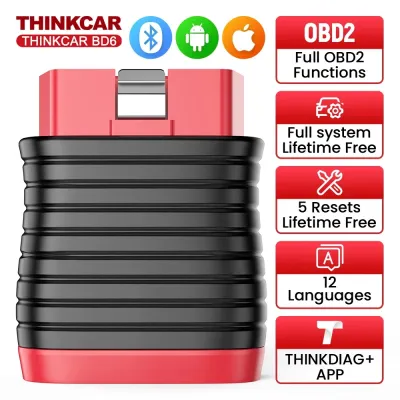
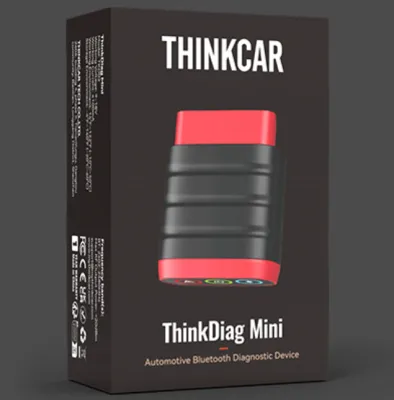
Next, locate the physical components required for the setup. You will need the compact ThinkDiag Bluetooth dongle and the original packaging or the activation card that came with it. This card contains the unique serial number and activation code required to register the hardware to your account. Keep these codes nearby, as you cannot complete the registration process without them.
Finally, prepare your vehicle for the connection. Park the vehicle in a safe, well-ventilated area, especially when working in warm and humid tropical climates like the Philippines, where sitting in a stationary vehicle can quickly become uncomfortable. Ensure the parking brake is firmly engaged and the transmission is in Park (for automatic vehicles) or Neutral (for manual vehicles). For the initial setup and scanning, the vehicle’s ignition must be turned to the “ON” position with the engine off, which powers up the vehicle’s computer modules without running the engine.
Downloading and Installing the Official App
To begin using your diagnostic tool, you must download and install the official application onto your mobile device. Using the official app store ensures you receive the most secure, stable, and up-to-date version of the software.

Open the Apple App Store on iOS devices or the Google Play Store on Android devices and search for the official ThinkDiag application. Avoid downloading installation files or APKs from third-party websites or online forums, as these files may contain security risks, lack critical updates, or fail to connect to your hardware. Always verify that the publisher of the app matches the official manufacturer name before initiating the download.
During the installation process, your mobile operating system will prompt you to grant several device permissions. It is crucial to allow these permissions for the app to function correctly. The app requires Bluetooth access to communicate with the wireless dongle plugged into your car. It also requires location services, which is a standard operating system requirement for scanning and pairing Bluetooth Low Energy (BLE) devices. Additionally, grant storage access so the app can save diagnostic reports, vehicle logs, and downloaded manufacturer-specific software packages directly to your device.
Before launching the app, double-check that your mobile device has sufficient storage space. Diagnostic software packages for different vehicle makes can be quite large, so having ample free space ensures that the downloads install completely without errors or app crashes.
Creating an Account and Activating the Scanner
Once the application is successfully installed, you must create a user account and link your physical scanner to it. This binding process secures your device and unlocks the diagnostic software features associated with your hardware.
Launch the app and select the registration option to create a new account. You can register using a valid email address or phone number. Enter your details and request a verification code, which will be sent to your inbox or via text message. Input the verification code into the app, create a strong password, and complete the registration process to log into your new account dashboard.
With your account active, navigate to the device activation section within the app menu. You will be prompted to enter the device serial number and the activation code. The 12-digit serial number, which typically starts with “98”, can be found on the back of the physical dongle or on the activation card included in the packaging. The 8-digit activation code is located on the activation card, often hidden under a scratch-off layer or printed clearly on the slip.
Carefully type these numbers into the corresponding fields in the app and submit the activation request. This process permanently binds the physical dongle to your personal account, preventing unauthorized users from accessing your device. Once the activation is complete, the app will automatically unlock the complimentary software packages or manufacturer-specific diagnostic tools included with your purchase, allowing you to begin downloading them to your device.
Pairing the Bluetooth Dongle to Your Phone
Establishing a stable wireless connection between your mobile device and the OBD2 dongle is a critical step that requires a specific sequence to avoid pairing errors.
First, locate your vehicle’s OBD2 port, which is typically situated under the dashboard on the driver’s side, beneath the steering column, or behind a plastic cover near the fuse box. Carefully align the 16-pin connector of the dongle with the port and press it firmly until it is fully seated. Once connected, verify that the power indicator light on the dongle illuminates, confirming that the vehicle’s port is actively supplying power to the device.
When pairing the device, do not use your phone’s native Bluetooth settings menu to search for and connect to the dongle. The scanner’s architecture requires that the connection be established directly through the official app. Ensure that Bluetooth is enabled in your phone’s system settings, but leave the pairing process to the application itself.
Open the app and initiate a diagnostic function or tap the connection icon on the home screen. The app will automatically scan for nearby active dongles and establish a secure wireless link. You can confirm a successful connection by observing the status indicator within the app interface, which will display a “Connected” message, and by checking the physical light on the dongle, which often changes color or flashes to indicate active communication.
Connecting to the Vehicle and Running a First Scan
With the app paired and the dongle powered, you are ready to initiate communication with your vehicle’s electronic control units and perform your very first diagnostic scan.
Turn the vehicle’s ignition key to the “ON” position, or press the engine start button twice without pressing the brake pedal if your vehicle has a keyless ignition. This step is vital because it powers up the vehicle’s computer modules, allowing the scanner to query them. Do not start the engine unless you are performing live data diagnostics that specifically require the engine to run.
Next, use the app’s automatic VIN detection feature to identify your vehicle. If supported by your vehicle’s OBD2 protocol, the app will automatically retrieve the Vehicle Identification Number (VIN) and determine the correct make, model, and year. If the automatic detection does not succeed, you can manually enter the 17-character VIN or select your vehicle’s specific details from the manual dropdown menus provided in the app.
Once the vehicle is identified, select the “All Systems Diagnostic” or “OBD” scan option to run a basic health check. The app will begin communicating with the vehicle’s modules, displaying a progress bar as it scans systems like the engine, transmission, ABS, and airbags. After the scan completes, review the diagnostic report to confirm that the app is successfully reading data from your vehicle, marking the successful completion of your first-time setup.
Troubleshooting Common Setup and Connection Issues
Even with careful preparation, you may occasionally encounter connection or activation hurdles. Knowing how to troubleshoot these common issues can quickly get your diagnostic tool back on track.
If you encounter a “device not found” error, first check that the dongle is fully plugged into the OBD2 port and that its indicator light is glowing. If there is no light, the port may not be receiving power, which is often caused by a blown fuse in the vehicle’s fuse box. Additionally, verify that your phone’s Bluetooth is turned on and that you have granted the app all necessary location and Bluetooth permissions in your phone’s system settings.
For activation failures, double-check the serial number and activation code for typographical errors. It is easy to mistake the number “0” for the letter “O” or the number “1” for the letter “I” when typing these codes. Ensure you are entering the characters exactly as they appear on the activation card. If the app states that the device is already activated or bound to another account, contact the manufacturer’s official customer support with your proof of purchase to resolve the registration conflict.
If the app crashes, freezes, or fails to download software packages, try clearing the app cache in your mobile device’s settings or restarting your phone. Ensure you have a strong, uninterrupted internet connection during downloads, as a weak signal can cause corrupted files. In warm climates, mobile devices can also overheat quickly when used inside a parked car; if your phone feels hot to the touch, let it cool down in an air-conditioned space before attempting to resume your diagnostic scan.
Frequently Asked Questions (FAQ)
Can I use the ThinkDiag app on multiple devices with the same account?
Yes, you can install the application on multiple mobile devices, such as a smartphone and a tablet, and log in using your registered account credentials. However, you cannot use the account simultaneously on more than one device to perform active vehicle scans. If you wish to switch from your phone to a tablet, ensure you close the app completely or log out of the active session on the first device before attempting to connect the second device to the Bluetooth dongle.
What should I do if my vehicle's OBD2 port has no power?
If the indicator light on your dongle does not turn on when plugged in, the OBD2 port is likely not receiving electrical power. When working with your vehicle’s electrical system, such as checking or replacing fuses, always refer to your vehicle’s owner’s manual for the exact fuse box location, diagram, and safety instructions. Ensure the ignition is completely off before inspecting or replacing any fuses to prevent electrical shorts or damage to sensitive electronic components. Start by checking the fuse labeled for the OBD2 port, auxiliary power, or the cigarette lighter, as these circuits are frequently shared. If the fuses are intact, inspect the physical port for bent pins, corrosion, or debris, and clean it gently with a dry contact cleaner if necessary. If basic checks do not resolve the issue, consult a qualified automotive technician to diagnose the wiring.
Do I need an internet connection every time I use the scanner?
An active internet connection is required during the initial setup, account registration, device activation, and when downloading manufacturer-specific diagnostic software packages. Once these software files are fully downloaded and saved to your mobile device’s storage, you can perform basic diagnostic scans, read trouble codes, and view live data without an internet connection. However, certain advanced functions, online coding, or database lookups may still require mobile data or Wi-Fi, and it is highly recommended to connect to the internet periodically to ensure your app and dongle firmware remain updated to the latest versions.
Community discussion
Share your experience or ask a question. Comments are reviewed before publication.