
Converting a wired dashboard connection into a wireless one is one of the most practical upgrades you can make for your vehicle. The Ottocast P3 Pro is designed specifically for drivers who want a premium, highly stable bridge to convert factory-wired Apple CarPlay or Android Auto into a wireless connection. It is the ideal choice if you prioritize a seamless, reliable daily connection without the lag, heat, or system bloat often associated with standalone Android operating systems. By acting as a dedicated communication bridge, it allows you to keep your phone in your pocket or on a wireless charging pad while your dashboard screen handles navigation and media streaming.
However, the Ottocast P3 Pro may not be the right fit for every driver in the Philippines. If you are working with a strict budget and only need basic wireless connectivity for a single phone, simpler entry-level dongles available on local e-commerce platforms can save you thousands of pesos. Conversely, if you want to stream video apps like YouTube or Netflix natively on your car screen while parked, a full-featured standalone AI Box is a more appropriate choice. Before making a purchase, you must verify that your vehicle’s factory head unit already supports wired CarPlay or Android Auto, as these adapters cannot add wireless functionality to a system that lacks the wired protocols entirely.
Key Comparison Dimensions for Wireless Adapters
Evaluating a wireless CarPlay and Android Auto adapter requires looking beyond basic product descriptions. To find a device that performs reliably under local driving conditions, you must consider how it handles wireless interference, startup times, screen compatibility, and the intense tropical heat of the Philippines.
Products mentioned in this guide
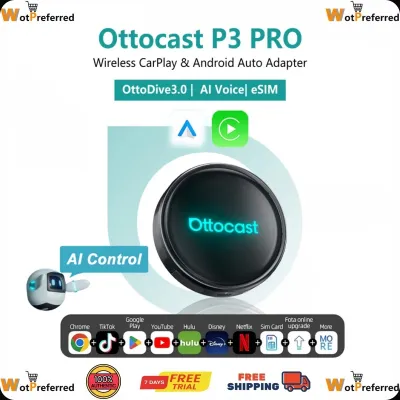
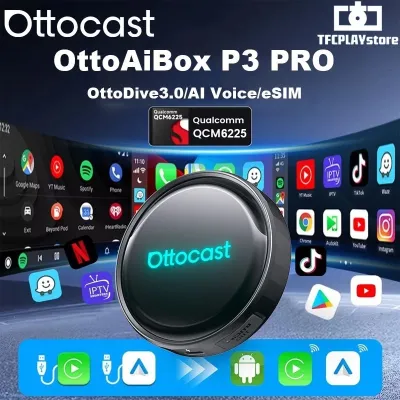

Prices are valid at publication and may change. Please refer to the product page for the latest price.
Connection Stability and Latency
Driving through high-density wireless environments in major Philippine metropolitan areas—such as the high-rise corridors of Bonifacio Global City (BGC), Makati, or Ortigas—can expose wireless adapters to severe signal interference. A high-quality adapter must utilize dual-band Wi-Fi (typically operating on both 2.4 GHz and 5.8 GHz frequencies) alongside advanced Bluetooth protocols to maintain a stable link. When an adapter relies on crowded or unshielded wireless bands, you will experience audio stuttering, map navigation freezes, or complete disconnections.
Latency is another critical factor that directly impacts your driving experience. There is always a slight delay when transmitting audio and touch inputs wirelessly compared to a physical cable. However, a premium adapter keeps this lag to a fraction of a second. If the latency is too high, you will notice a frustrating delay when skipping music tracks, making hands-free phone calls, or receiving real-time navigation prompts, which can lead to missed turns on fast-moving highways like EDSA or the Skyway.
Boot Speed and Reconnection
The convenience of a wireless adapter depends heavily on how quickly it connects when you start your vehicle. The ideal experience is completely hands-off: as you start the engine, the adapter should power up, initialize its wireless handshake, and launch CarPlay or Android Auto on your screen before you even shift out of your parking space. If an adapter requires manual Bluetooth selection every time or takes several minutes to boot, it defeats the practical purpose of going wireless.
High-quality adapters utilize optimized firmware and faster processors to minimize this startup sequence. They establish a quick Bluetooth handshake to verify the phone’s presence, then immediately hand over the data connection to a high-speed Wi-Fi Direct link. This dual-step connection process ensures that your phone remains in your pocket or bag while the dashboard interface loads automatically in the background.
Head Unit Compatibility and Interface Scaling
Not all car screens are built the same. Factory infotainment systems in popular vehicles from brands like Toyota, Honda, Mitsubishi, and Ford feature varying screen resolutions, aspect ratios, and touchscreen technologies. A premium adapter must dynamically scale its output resolution to match the host display perfectly, ensuring that icons, text, and maps do not appear pixelated, stretched, or cut off at the edges.
Furthermore, you must distinguish between factory-installed wired head units and aftermarket Android screens. Standard wireless bridge adapters are designed to plug into factory-installed USB ports that already have built-in wired CarPlay or Android Auto protocols. If your vehicle features an aftermarket Android head unit, it may lack these native protocols entirely, requiring specialized software drivers or different hardware configurations to enable wireless connectivity.
Thermal Management in Tropical Climates
The Philippine climate presents a severe operational challenge for car electronics. When your vehicle is parked under the midday sun in Manila, Cebu, or Davao, cabin temperatures can easily exceed 60°C. Once you start driving, the adapter itself generates substantial internal heat while continuously processing high-bandwidth wireless video and audio data.
Without robust thermal management, an adapter will quickly suffer from thermal throttling. This protective slowdown leads to sudden connection drops, laggy screen updates, or permanent hardware failure. When comparing adapters, look for physical design cues that promote heat dissipation, such as aluminum alloy housings, dedicated ventilation grilles, or internal heat sinks, which help keep the internal components within safe operating temperatures during long road trips.
Deep Dive: Ottocast P3 Pro Performance and Features
Understanding how the Ottocast P3 Pro is engineered helps clarify why it commands a premium price point compared to generic options. Its design, dual-system handling, and software support are tailored for drivers seeking a reliable, long-term upgrade.

Design, Build Quality, and Cable Management
The Ottocast P3 Pro features a compact, low-profile design with a durable outer casing designed to withstand the physical vibrations of daily driving. Its port layout typically includes a USB-C input, and it comes packaged with both USB-A and USB-C connection cables to accommodate older and newer dashboard configurations. This flexibility is crucial for maintaining a clean, uncluttered center console.
When installing the device, proper mounting is essential for safety and longevity. You should position the adapter in a secure location where it does not block your gear shifter, physical climate controls, or passenger-side airbag deployment zones. Utilizing double-sided mounting tape or cable clips can prevent the unit from rattling or sliding around during sudden stops on uneven road surfaces.
Dual-System Support and Multipoint Switching
For households where multiple drivers share a single vehicle, switching between different smartphone operating systems can be a major source of frustration. The Ottocast P3 Pro addresses this by offering robust dual-system support, acting as a universal bridge for both Apple CarPlay and Android Auto. It detects which paired phone is active inside the cabin and launches the appropriate interface automatically.
To prevent connection conflicts when both paired devices are in the car simultaneously, the adapter’s internal software utilizes connection priority rules. You can configure which phone takes precedence through the device’s settings menu. This eliminates the need to manually disable Bluetooth on one phone just to let the other driver connect, making it a highly practical feature for family SUVs or shared company vehicles.
Firmware Updates and Over-the-Air Support
Smartphone operating systems receive frequent updates that can occasionally disrupt wireless compatibility with third-party car accessories. To counter this, the manufacturer provides regular over-the-air (OTA) firmware updates. Keeping the adapter’s software updated ensures ongoing compatibility with the latest iOS and Android releases while resolving vehicle-specific bugs.
Updating the firmware is a straightforward process that does not require connecting the adapter to a computer. Instead, you connect your smartphone to the adapter’s local Wi-Fi network, open a standard mobile web browser, and enter the local gateway IP address provided in the user manual. From this web-based configuration portal, you can check for online updates, download patches, and adjust advanced settings like audio delay or boot delay parameters.
Known Limitations and Mitigation Steps
Despite its premium engineering, the Ottocast P3 Pro is not entirely immune to occasional connection hiccups. Some vehicle models with unique USB power delivery profiles may experience intermittent power cycling, where the adapter restarts unexpectedly. This issue can usually be resolved by using a high-quality power-stabilizing Y-cable or ensuring that the vehicle’s USB port is clean and free of debris.
Another common friction point is initial pairing confusion if the phone’s Wi-Fi is already connected to a home network or a portable mobile hotspot while parked in your driveway. To mitigate this, ensure your phone’s Wi-Fi is set to automatically join the adapter’s network once Bluetooth establishes the initial handshake. If you experience persistent pairing failures, clearing the adapter’s pairing history and performing a soft reset via the web configuration portal will typically restore normal operation.
Evaluating Market Alternatives
To determine if the Ottocast P3 Pro is the right investment, it is helpful to compare it against the two primary alternative categories available on e-commerce platforms: budget wireless bridge dongles and premium standalone AI boxes.
Budget Wireless Bridge Dongles
Budget wireless dongles represent the entry-level segment of the market, typically priced between ₱1,500 and ₱3,000. These devices are generally designed with a single purpose in mind, often supporting only wireless CarPlay or only wireless Android Auto, but rarely both on the same hardware. They are typically constructed from lightweight plastics without internal heat sinks or ventilation grilles, making them highly susceptible to thermal throttling during hot afternoon drives.
- Hardware and Performance: These budget options often utilize older, single-core processors and limited RAM, resulting in longer boot times (frequently exceeding 45 seconds) and noticeable audio delay during calls.
- Ideal Use Case: A budget dongle is a reasonable choice if you are the sole driver of the vehicle, use only one phone brand, primarily make short daily commutes, and can mount the device completely out of direct sunlight to prevent overheating.
Premium Standalone AI Boxes
At the opposite end of the spectrum are premium standalone AI Boxes, which typically range in price from ₱8,000 to over ₱15,000. Unlike simple bridge adapters that merely mirror your phone’s interface, an AI Box is an independent Android computer that runs its own operating system directly on your car’s head unit. These devices feature multi-core processors, dedicated RAM, expandable storage, and often a built-in SIM card slot for independent cellular data connectivity.
- Multimedia Capabilities: An AI Box allows you to run native entertainment applications like YouTube, Netflix, or Spotify directly on your dashboard screen without relying on your smartphone's battery or data hotspot. However, drivers must observe strict safety boundaries: video playback should only be used while the vehicle is safely parked, in compliance with the Republic Act No. 10913 (Anti-Distracted Driving Act) in the Philippines.
- Power and Complexity: These units demand significantly more power from your vehicle's USB port and generate substantial heat, often requiring built-in cooling fans. They also involve a more complex initial setup and configuration process compared to a simple plug-and-play wireless bridge.
Decision Framework: Which Adapter Fits Your Setup?
Choosing the right adapter comes down to matching your specific driving habits, household needs, and vehicle configuration with the correct product category.
- Choose the Ottocast P3 Pro if: You want a highly reliable, dual-system wireless bridge that handles both Apple CarPlay and Android Auto seamlessly. It is the best fit if you share your car with family members who use different smartphones, value fast boot times and low latency for daily commuting, and want a durable device capable of handling high cabin temperatures.
- Choose a Budget Dongle if: You drive shorter distances, use only one smartphone operating system, and want to convert your wired connection to wireless with the lowest possible upfront cost.
- Choose a Premium AI Box if: You frequently spend long periods waiting in your parked vehicle (such as during school pickups or while resting between meetings) and want the ability to run independent multimedia and video streaming apps directly on your dashboard screen.
- Verify Compatibility First if: Your vehicle features an aftermarket Android head unit or lacks native wired CarPlay/Android Auto support from the factory. In these scenarios, standard wireless bridge adapters will not function, and you must consult a qualified car audio professional or refer to your head unit's original documentation before purchasing any adapter.
Installation and Setup Verification
To ensure your new wireless adapter operates safely and performs at its best, follow a structured installation and verification process.
Step-by-Step Initial Pairing
- Prepare the Vehicle: Park your car in a safe, well-ventilated area, engage the handbrake, and turn on the ignition to power up the infotainment system.
- Connect the Adapter: Plug the adapter into the vehicle's primary USB port designated for smartphone data transfer (often marked with a phone or screen icon). Avoid using charge-only ports, which do not transmit data.
- Enable Phone Wireless Settings: On your smartphone, ensure both Bluetooth and Wi-Fi are turned on and that the phone is unlocked.
- Establish the Bluetooth Link: Search for the adapter's Bluetooth ID in your phone's settings menu and select it to pair. Accept any on-screen prompts requesting permission to sync contacts or enable CarPlay/Android Auto.
- Complete the Handshake: The adapter will automatically negotiate a Wi-Fi Direct connection with your phone. Once completed, the CarPlay or Android Auto interface will load on your dashboard screen.
Cable Selection and Power Delivery
Always use the high-quality, data-certified USB cables supplied by the manufacturer to connect the adapter to your dashboard. Many standard charging cables purchased from third-party retailers only contain power delivery pins and lack the high-bandwidth data shielding required to maintain a stable connection. If you must replace the cable, ensure it is rated for high-speed USB data transfer to prevent random disconnections and power delivery failures.
Troubleshooting and Safety Guidelines
If you experience connection failures or black screens during the initial setup, start with simple, non-invasive troubleshooting steps. Instruct your smartphone to “forget” the adapter’s Bluetooth and Wi-Fi profiles, unplug the adapter from the USB port for 10 seconds, restart your phone, and attempt the pairing process again. Always refer to your vehicle’s original owner’s manual to verify if specific USB connection settings must be enabled in your head unit’s system menu. Never attempt to configure settings, pair new devices, or troubleshoot connection issues while the vehicle is in motion.
Community discussion
Share your experience or ask a question. Comments are reviewed before publication.